Core features
How to Embed a Schedule on Any Website
Last updated October 2026.
The schedule is the page your attendees return to right up to the morning of the event. Embedding it from ConfBuilder keeps that page live without anyone touching the website after every session move.
1. Publish the schedule
Finish the sessions in your draft and publish the track. Publishing snapshots the schedule into the version the public sees on the website and in the attendee app.
2. Copy the embed snippet
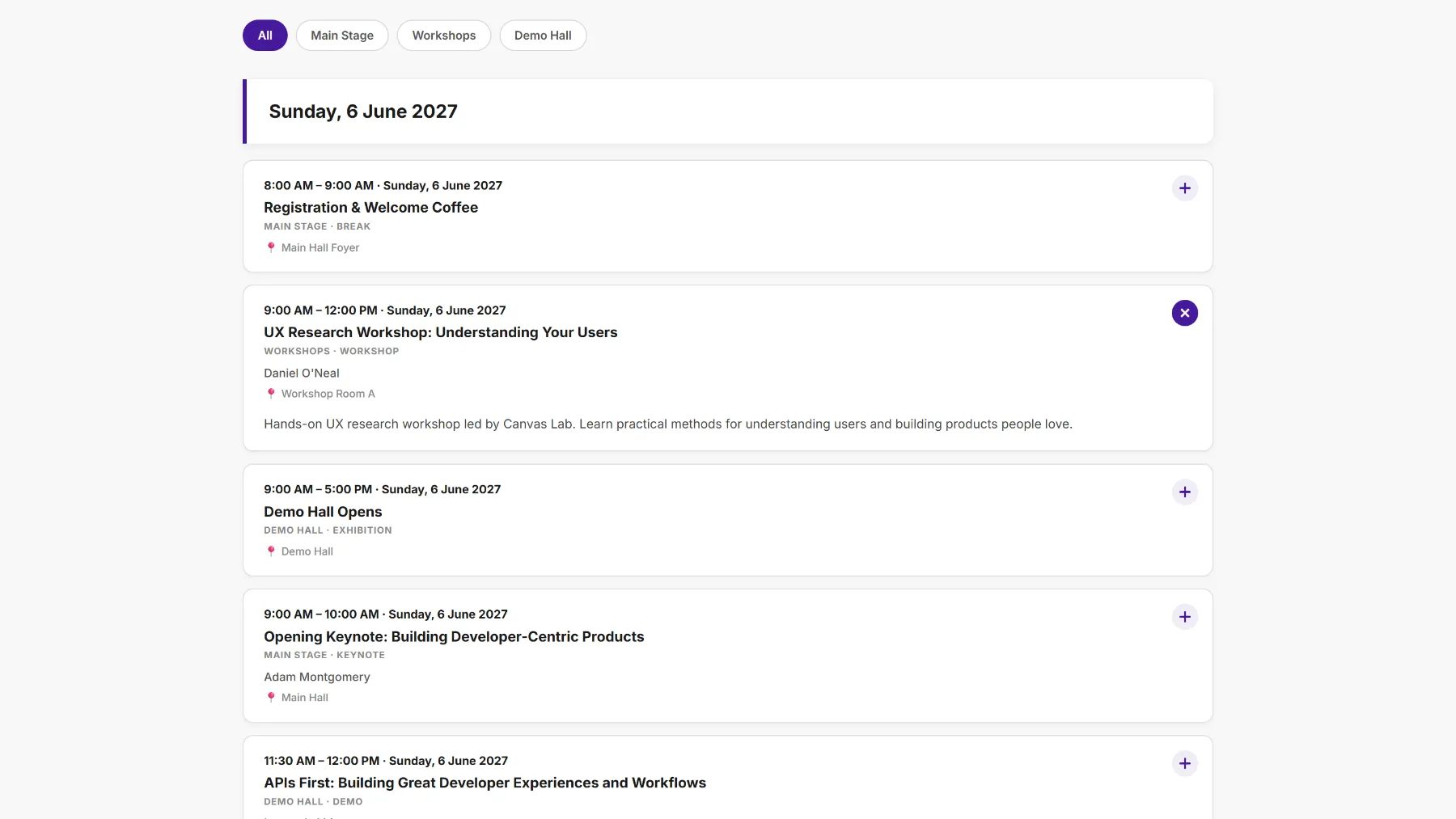
In the schedule's embed settings, the Embed Builder hands you the snippet. The embed shows day tabs, session types, speakers, locations and sponsor links, rendered the way attendees expect a conference agenda to look.
3. Style it to your site
Set colours and fonts in the embed settings so the agenda looks like it belongs on your site. If you host the embed on its own page, the background can be transparent so your site's own background shows through.
4. Paste it into your website
Paste the snippet into the schedule page on your event site, or anywhere else that accepts embeds. WordPress, Squarespace, Webflow and hand-coded sites all take it.
5. Update without touching the website again
The session moves from 11am to 2pm. Edit the session in ConfBuilder, republish, and the embedded agenda updates on your website on its own. Nobody logs into the website, nobody re-exports a PDF, nobody emails delegates a new agenda file.
Run this on your next event
Up and running in under 2 minutes. Free 14-day trial, no credit card required.