Core features
How to Build a Conference Schedule
Last updated October 2026.
A conference schedule is never finished on the first pass: rooms move, keynotes swap, sessions split. ConfBuilder treats the schedule as a living build, not a one-off spreadsheet, and it publishes the moment you are ready.
1. Create a track
A track is a stage or a stream: Main Stage, Workshop Room, Track B. Create one tracks per stage. Keep the names short, they headline every session tile in the app and on the website.
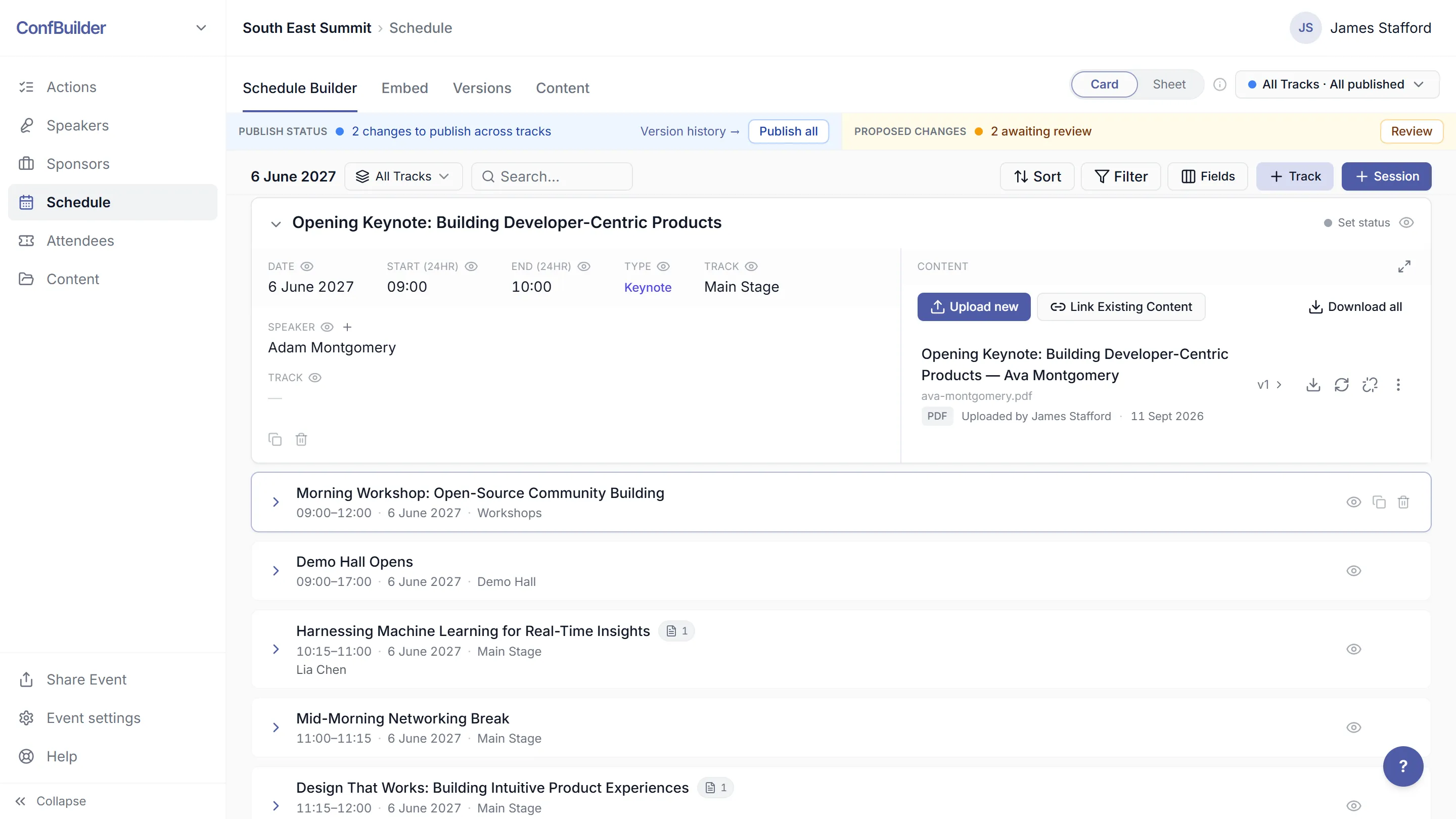
2. Add sessions in card view
Card view is the default: each session is a card with time, location, session type and its linked speaker, sponsor and content. Click into a session and attach everything that belongs to it, so the deck, the speaker and the sponsor sponsorship never float free of the agenda.
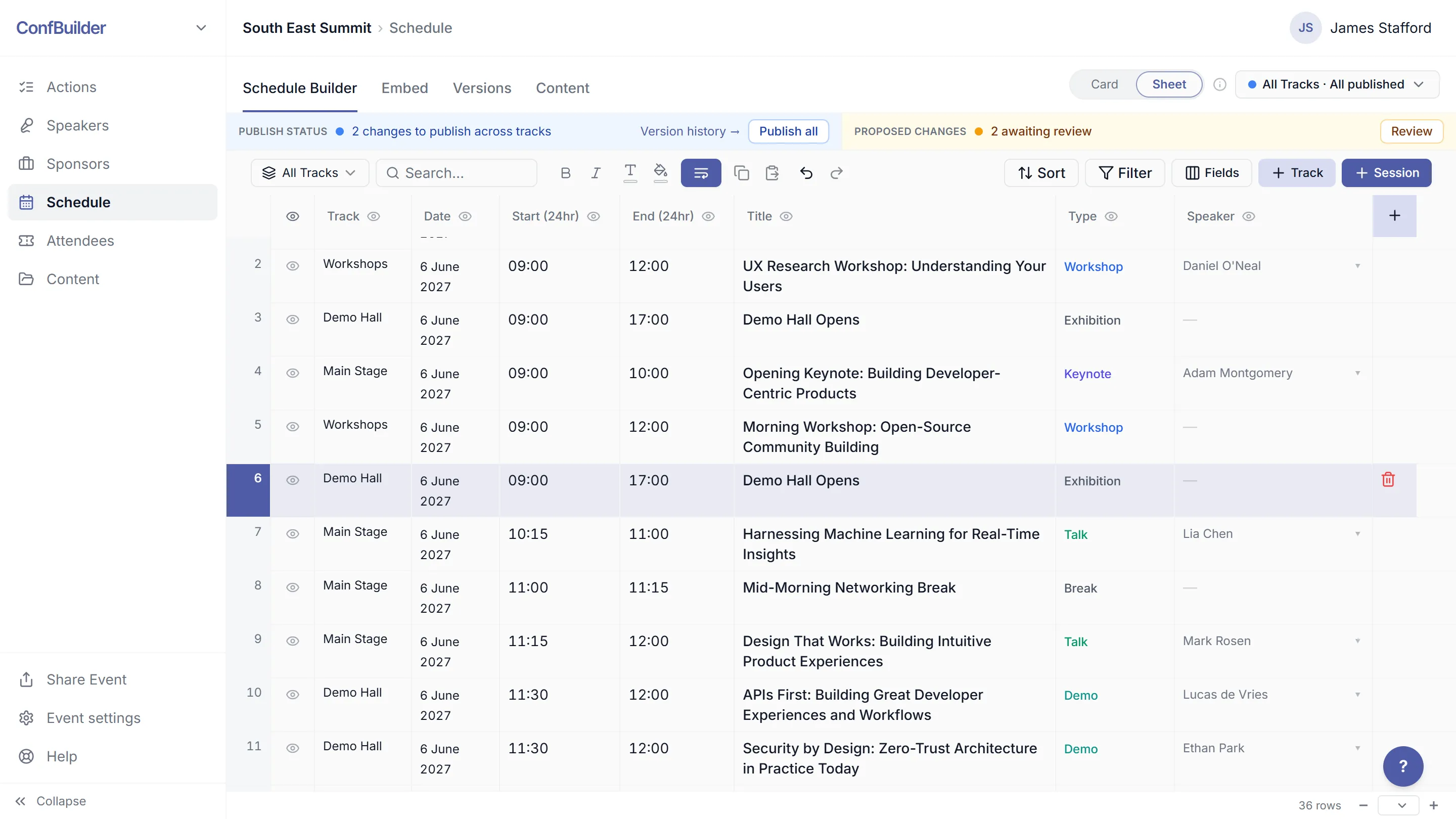
3. Work in sheet view for bulk changes
Sheet view is a grid: sessions in rows, fields in columns. Move a block of sessions, retime a whole track, or paste in a day's agenda from a spreadsheet. Bulk work stays bulk instead of one dialog at a time.
4. Publish the schedule
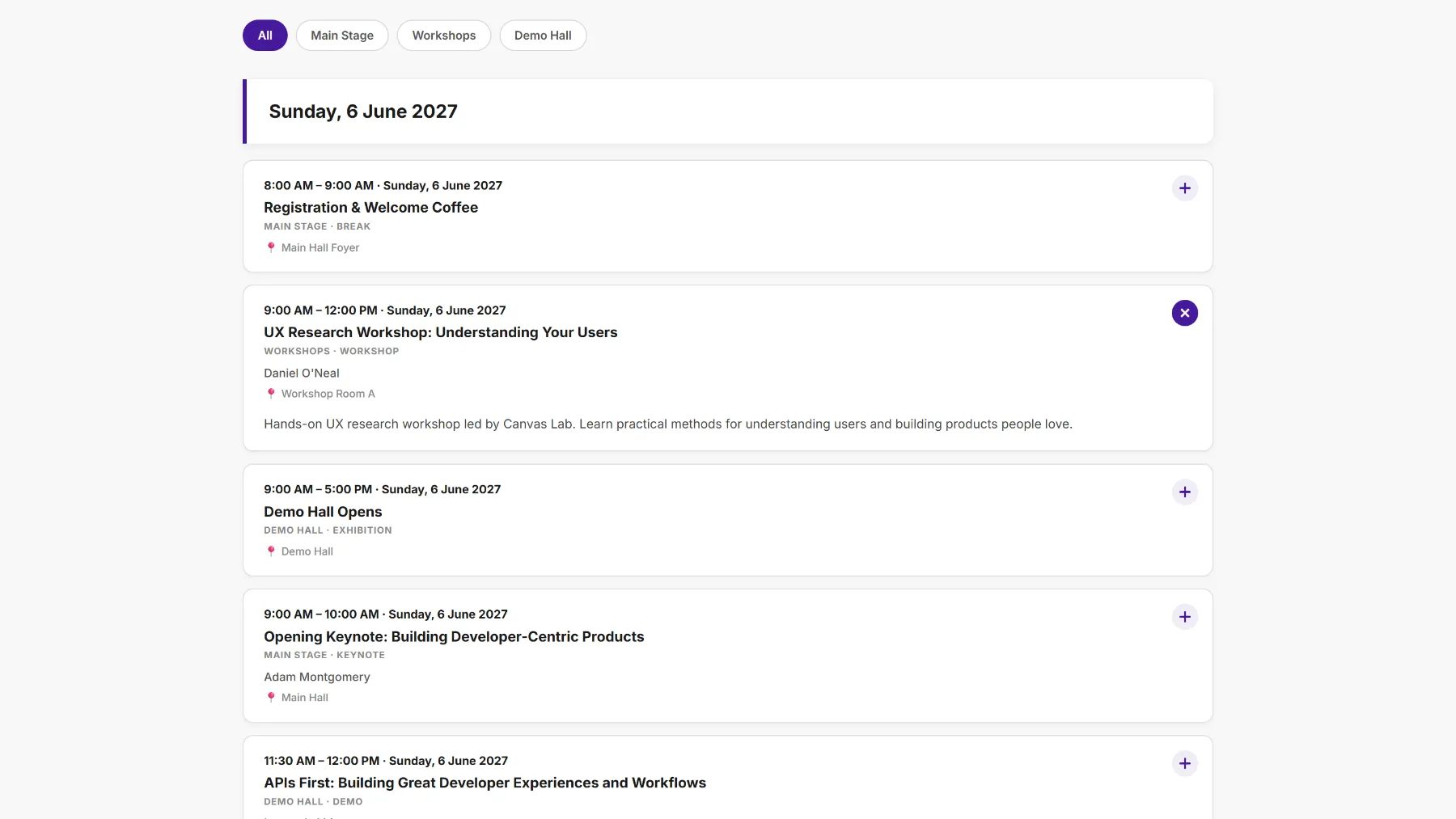
Publishing snapshots your draft into the version the app and website serve. Visitors get day tabs, session types, speakers and locations. Publish again after edits: the draft is working space, the published version is what the public sees.
5. Embed it on your website
One embed snippet puts the schedule on any event site, styled with your colours and fonts. Session types, speakers and locations all render. When the schedule changes and you republish, the embed updates itself.
6. Handle the 11th hour calmly
Room swaps happen. Edit the session, republish, done: the website, the app and every promo mention follow. No PDF churn, no version soup in inboxes.
Run this on your next event
Up and running in under 2 minutes. Free 14-day trial, no credit card required.