AI & MCP
AI Prompts That Run Your Conference Admin
Last updated October 2026.
ConfBuilder gives every account its own MCP server, so Claude, ChatGPT, Codex, Cursor or Claude Code can work your event with your permissions. The assistant asks before making changes, and every change shows in the queue for you to verify. If you have not connected a client yet, start with the connect guide.
1. Move a session and republish
Update Sam Chen's title to Principal Engineer, move his keynote to 11am and republish.
The assistant edits the profile, retimes the session and republishes the schedule and Speaker Wall. Visitors see the new time instantly and the Promo Card re-renders from the updated profile.
2. Find and chase missing headshots
Which accepted speakers in my event have no headshot? List them with their emails.
You get the exact gap list in seconds. Follow up with one email per person instead of scrolling the wall wondering.
3. Check in attendees in bulk
Check in everyone on the list who is not checked in yet.
The assistant walks the list and checks them in as a batch, at the door or after the morning rush.
4. Build a session the way you would type it
Add a workshop called "Ship your first agent" to the Workshop Room track, Thursday 2 to 4pm, linked to Maya Chen as speaker.
Times, location, track, speaker link: one sentence instead of four dialogs.
5. Publish the whole public face at once
All speaker cards are approved. Publish the speaker wall, the sponsor wall and every schedule.
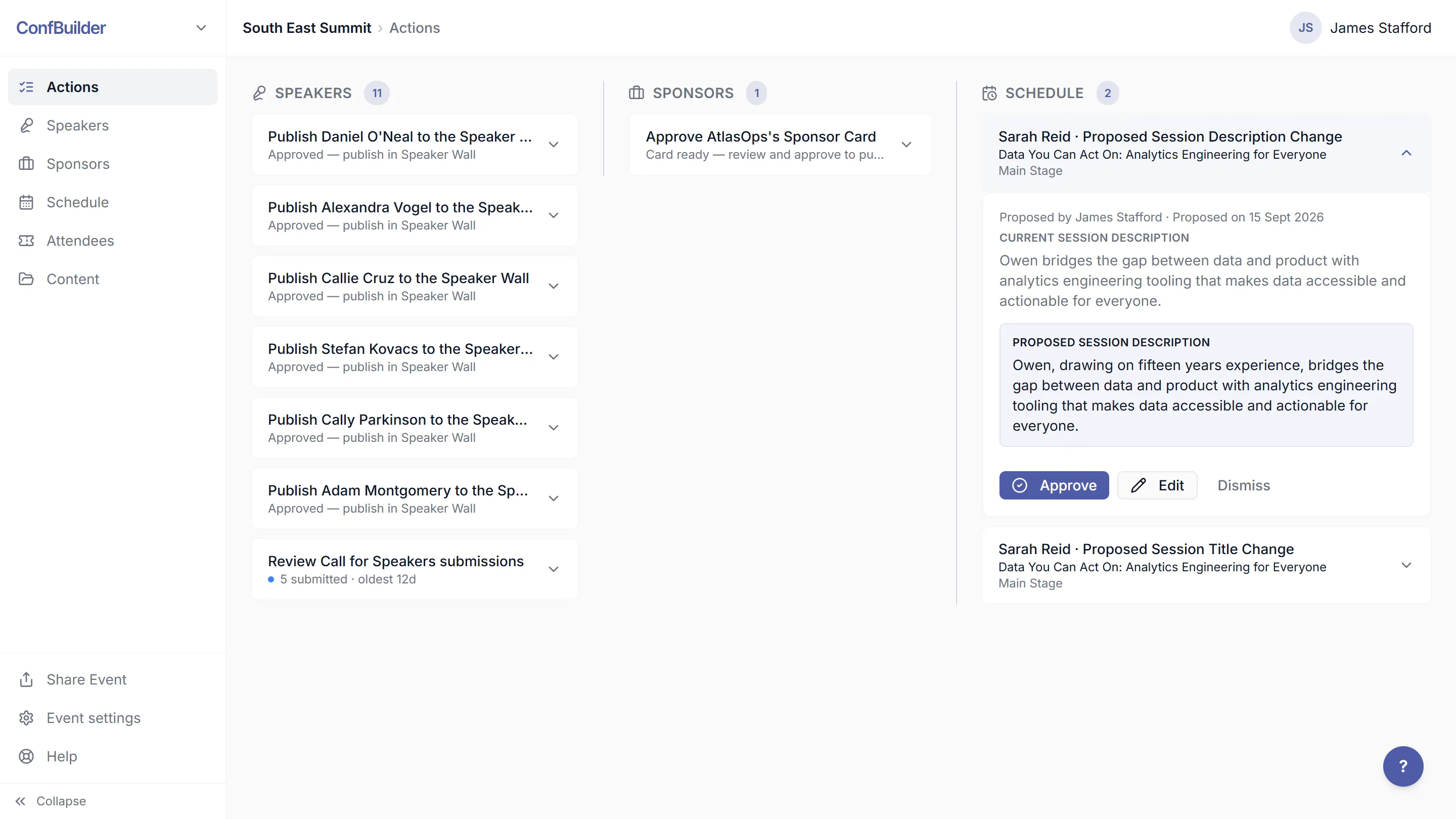
Bulk card approval and publishing, all tracks or one, in one ask. The Actions queue records each publish.
6. Rename a sponsor everywhere
Rename Helios Events Group to Helios Events and update their website URL.
One record edit propagates: the wall, their sponsored sessions, their card and the website.
7. Make a speaker gallery to post
Make a speaker gallery poster with the first 8 accepted speakers, 4 columns, and give me the card images.
The gallery builder assembles branded speaker cards into a grid you can drop into a newsletter or a poster. (See the gallery guide for the manual flow.)
8. Post an update to everyone
Post a news item: rooms have changed, Workshop sessions are now in Room 2B. Notify everyone.
News lands in the attendee app feed and push-notifies the people linked to the event.
9. Stand up a new event end to end
Create a two-day event called Future Stack Berlin, June 12 to 13 2027. Give it a schedule with a Main Stage, add our three anchor speakers and publish the schedule.
The scaffold, the first sessions and the first publish, in one conversation.
10. Tidy before the event
Show me everything pending on my event: unanswered intake forms, unapproved cards, unpublished schedules.
One question returns your complete outstanding-action list, then you work it down.
Run this on your next event
Up and running in under 2 minutes. Free 14-day trial, no credit card required.